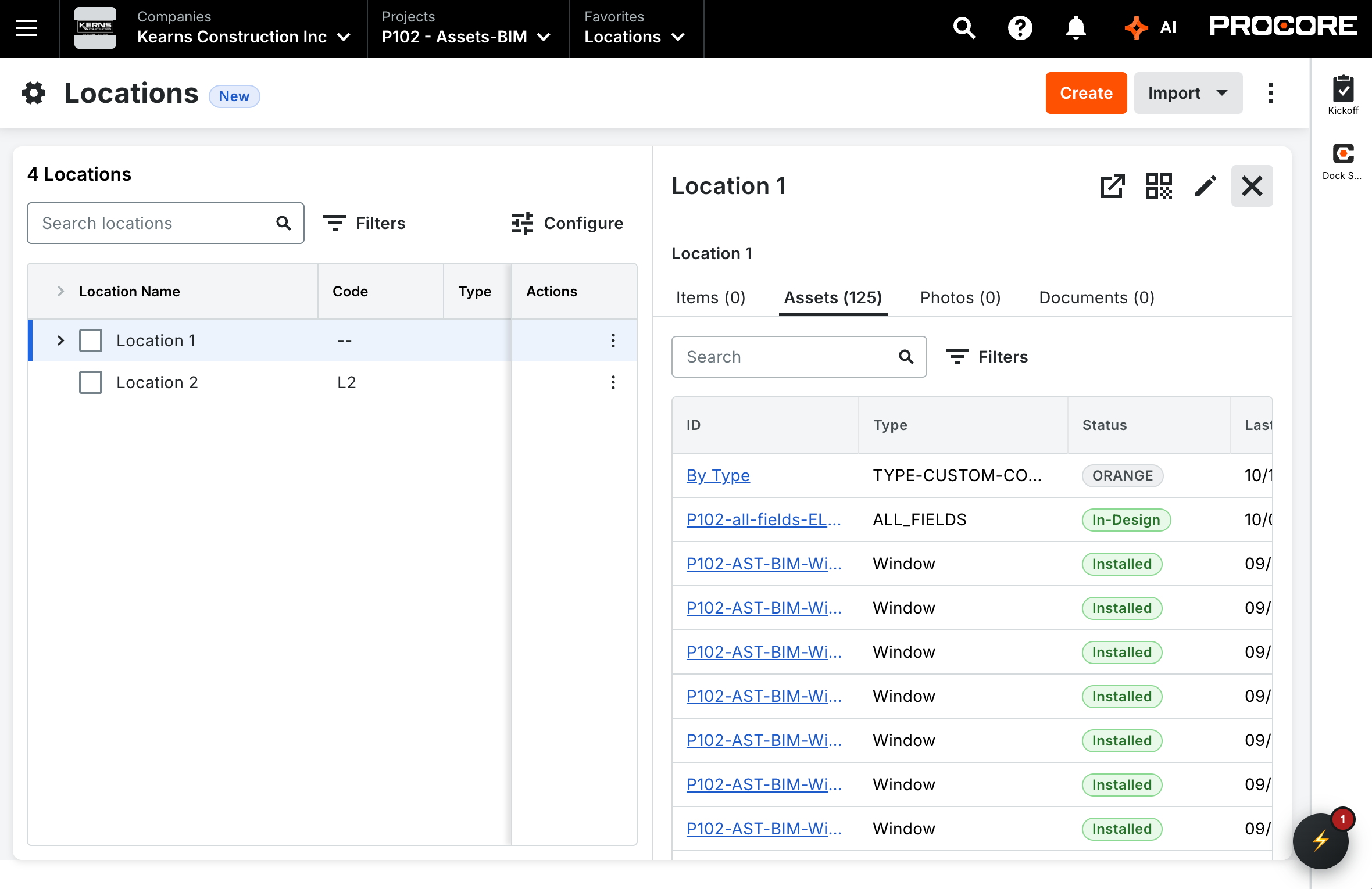
What it is: Location Details has a new Assets tab, next to Items, with a count. Toggle to include sublocations, search and filter the list, and click any asset ID to open its full record in the Assets tool. It’s view and navigate only, and it follows your existing Assets tool permissions. Who it’s for: Project teams who work with locations and installed fixed equipment. Why it matters: Location Details already shows items, photos, and documents for a space, but assets lived only in the Assets tool, so checking what was assigned to a location meant switching back and forth. The Assets tab closes that gap: you see the equipment tied to a location right where you’re already working. How to get started: Open a location in the Locations tool and select the Assets tab in Location Details. Toggle “Include sublocations” to widen the view, then click an asset ID to open it in the Assets tool. Available December 15.